OrgNice Chart Viewer is where you see the chart you have created! This is where everything comes together. The Chart Viewer is designed to be easy to use and navigate. It provides a number of capabilities. Let’s explore what you can do with Chart Viewer.
Note: The chart owner may have set a default view for this chart. If so, you will see it displayed when you first open the chart. You can interact freely with the chart and make any changes you like - the default view is only applied on first load, not when you refresh the page.
Understanding Chart Viewer
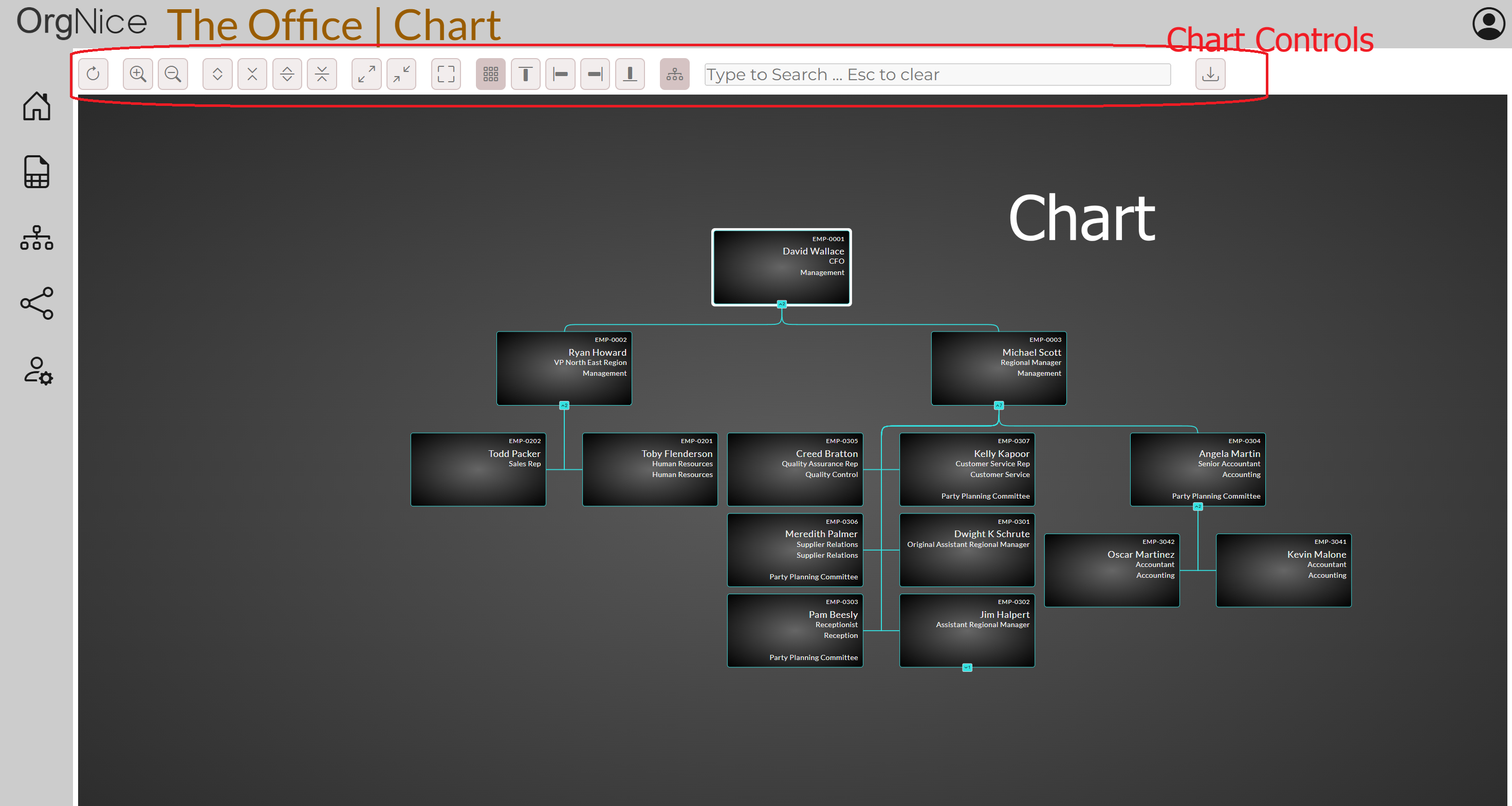
The key elements of the chart viewer are the chart itself and the chart controls.
Chart
Your Org chart occupies the most space in the Chart viewer, with the Profile Panel alongside it on the right when you have a node selected (shown above). The primary navigation mechanism is using a mouse (or by touch if you are using a touch enabled screen).
Chart Navigation
- You can re-position the chart by dragging it around.
- Zoom in and out of the chart by pinch zooming. You can also use the zoom-in and zoom-out chart controls for it.
- Start typing or press Ctrl+F to open the search sidebar and discover your organization’s structure. You can search by employee name, ID, or any additional fields (department, title, location, etc.). Results are organized into Individuals (ranked by relevance) and Groups (teams where multiple employees match). Use keyboard navigation to explore: Arrow Up/Down navigate through results, Ctrl+Up/Down jump between key items (individuals and first members of groups), Left/Right collapse/expand groups, and Escape closes the search panel.
- Lines shows how nodes are related to each other - parent and children in a hierarchy are connected. So managers are connected to their direct reports.
Node Interactions
- You can highlight and center a node by clicking on it. It will draw a highlight around the node and focus on the node (bring it to the center of the chart viewer). Click on it again to remove the highlight. If the Profile Panel toggle is on, this also opens that person’s full profile in the panel alongside the chart.
- You can expand and collapse the children of a node (the hierarchy) by clicking on the expander button at the bottom edge of any node. This way you can expand all the direct reports of a manager. The expander shows the number of direct children it has. If there are no children (i.e. no hierarchy below it), the expander is not visible.
Keyboard Shortcuts
The entire Chart Viewer can be operated without a mouse. Only one node in the tree is reachable by Tab at a time (the highlighted node, or the root if nothing is highlighted) — arrow keys move that single point around instead, so you’re never stuck tabbing through hundreds of nodes. On Mac, tooltips throughout the toolbar automatically show Cmd/Option in place of Ctrl/Alt; both work interchangeably.
Getting to the chart
- Alt+C (Option+C on Mac) — jump keyboard focus straight to your current node (wherever you last navigated to, or the root), from anywhere on the page.
- Alt+T (Option+T) — jump keyboard focus straight to the toolbar, from anywhere on the page.
- Ctrl+F (Cmd+F) — open the search panel and focus it, from anywhere. Typing any other single character does the same thing.
With a node focused — moving and selecting
Arrow keys move by actual on-screen position, not by the underlying data hierarchy — so they always match what you see, regardless of layout (top/bottom/left/right) or compact mode’s grid-like packing.
- Arrow Up / Down / Left / Right — move to whichever visible node is closest in that direction, and select it (highlights it and updates the profile panel, the same as clicking it — so the panel follows along live as you move).
- Ctrl+Arrow (Cmd+Arrow) — move by the org chart’s actual hierarchy instead (parent / first direct report / previous / next sibling) rather than by on-screen position — always exactly one hop, regardless of layout.
- Enter — make sure the current node is selected and dive into its profile panel (usually a no-op on the selection itself, since arrow movement already selected it).
- Space — expand or collapse that node’s direct reports. Screen readers announce the count and state directly on the node, e.g. “Jane Doe, 3 direct reports, expanded.”
- Shift+Space — expand or collapse that node’s entire subtree, not just its direct reports.
Profile panel
Once you’re viewing someone’s panel, its arrow keys work exactly like the canvas’s do, so there’s nothing new to learn — plain arrows move to whichever visible node is closest in that direction, and Ctrl+Arrow (Cmd+Arrow) moves by hierarchy instead (manager / first direct report / previous / next sibling). Either way, you can browse the whole org from inside the panel without ever needing Search.
- Arrow Up / Down / Left / Right — move to the closest node on screen in that direction, same as the canvas.
- Ctrl+Arrow (Cmd+Arrow) — move by hierarchy instead: manager / first direct report / previous / next sibling.
- Escape — return keyboard focus to the canvas. The panel stays visible (it’s controlled by the toolbar’s Profile Panel toggle, not by what’s focused) and keeps following you as you continue navigating the canvas.
- Tab — move through the panel’s own controls (Reports to, copy link, etc.) once it has focus.
Zoom, pan, and everything at once — all work from anywhere, no node needs to be focused
- Ctrl+Plus / Ctrl+Minus (Cmd+Plus / Cmd+Minus) — zoom in / out.
- Ctrl+0 (Cmd+0) — fit the chart to screen.
- Alt+0 (Option+0) — center the chart.
- Alt+Arrow keys (Option+Arrow) — pan the chart in that direction.
- Ctrl+Shift+Space (Cmd+Shift+Space) — toggle expand all / collapse all.
- Every toolbar button (Pan, Zoom, Expand/Collapse, Layout, etc.) is a standard button too, reachable with Tab and activated with Enter or Space.
Search
- Escape — close the search panel, from anywhere.
- Arrow Up/Down — move between results. Ctrl+Up/Down (Cmd+Up/Down) — jump between key items. Left/Right — collapse/expand groups. Enter — select a result.
Chart Controls
The chart controls are all laid out in the top button toolbar. Some controls may not be available based on your subscription tier. From left to right, the controls are -
- View Directory Switches to the Directory view — a searchable card or table list of everyone in your org data, alongside the same profile panel, as an alternative to the tree layout.
- Refresh Refresh the chart. This will effectively redraw your chart.
- Zoom In Zoom in to the center of the chart to see more detail.
- Zoom Out Zoom out from the center of the chart to see more of the chart (reduce detail).
- Pan Up / Down / Left / Right Move the visible area of the chart in that direction, without needing to drag with a mouse.
- Expand Expands all the nodes on the chart.
- Collapse Collapses all the nodes on the chart. You’ll be left with only the root node at the center. You can use this to reset the state and restart navigation.
- Expand Highlighted Expands the currently highlighted node (if any). Has no impact if there is no node highlighted
- Collapse Highlighted Collapses the currently highlighted node (if any). Has no impact if there is no node highlighted
- Expand/Collapse Focused Node Expands or collapses whichever node currently has keyboard focus — the same single-level toggle as clicking that node’s own expander badge, without needing to reach the badge itself.
- Fit To Screen Fits the current chart to screen so you can see the whole chart
- Center Chart Centers the highlighted node (or the whole chart, if nothing is highlighted) on the screen
- Fullscreen Make your chart fullscreen - good to get more real-estate for your chart and for presentations
- Compact Mode Compact mode lays out your chart to make it consume less horizontal space when it is expanded. You can toggle this mode on or off.
- Layout Top to Bottom Set the layout strategy of the chart to be top to bottom
- Layout Left to Right Set the layout strategy of the chart to be left to right
- Layout Right to Left Set the layout strategy of the chart to be right to left
- Layout Bottom to Top Set the layout strategy of the chart to be bottom to top
- Highlight Path to Root if this option is ON, then when a node is highlighted, the path to the root of the chart is highlighted as well
- Export Opens the Export Options dialog to export the current state of the chart as PNG, SVG, PDF, or an Accessible PDF (selectable/searchable text). Choose the whole chart or just a highlighted node’s sub-tree, and optionally an export-optimized layout for more compact slides/printouts. You can expand your chart to the desired state and then export it to retain that state as a snapshot. If you want the whole chart, you can Expand all nodes first and then export. See Exporting for details.
- Focus Current Node (Alt+C) Jumps keyboard focus straight into the chart, onto the highlighted node (or the root if none is highlighted) — a shortcut for reaching the tree without tabbing through the rest of the toolbar first.
- Search Opens an interactive search panel where you can discover your organization’s structure. Search by employee name, ID, or any additional field. Results organize into Individuals (ranked by relevance: exact > prefix > contains) and Groups (teams where multiple employees match). Navigate results with keyboard shortcuts: Arrow Up/Down to move through results, Ctrl+Up/Down to jump between key items (individuals and first group members), Left/Right to collapse/expand groups, Enter/Click to select, and Escape to close. When you select a result, the chart highlights that employee and centers them on screen. Path-to-root mode is automatically respected during search navigation.
- Profile Panel Toggles the profile panel on or off. When on, selecting a node opens that person’s full profile alongside the chart — identity, reporting line, direct report count, and any additional configured fields.
- Layers Opens the Layers panel to toggle configured visual layers on and off. Visual layers allow you to color-code and style nodes based on your spreadsheet data. Only shown once layers are configured for this chart. See Layers for more information on configuring layers.
- Keyboard Shortcuts Opens this page’s Keyboard Shortcuts section in a new tab.