Your team uses Confluence because you value dynamic information. Documentation is never frozen—anyone can update it when things change. Wikis reflect current reality. Information is collaborative, always current, a single source of truth.
But org charts? They’re usually static. A PNG or SVG someone drew in PowerPoint, last updated three months ago when someone remembered to export a new version. Every new hire gets old information. Onboarding docs contradict each other. Board members see outdated structure.
This is philosophically inconsistent. If your team trusts Confluence for dynamic, collaborative knowledge, why accept static org charts? Org charts should follow the same principles: always current, reflecting reality as it changes.
This article shows how to embed a live org chart in Confluence that updates automatically, extending your dynamic documentation philosophy to organizational structure itself. (For deeper context on why this matters, see Why Org Charts Fail in Fast-Growing Companies.)
The Traditional Approach: Static Org Charts in Confluence
Here’s how most teams currently manage org charts in Confluence:
- Someone creates an org chart in PowerPoint, Lucidchart, or Visio and exports it as a PNG or SVG
- Upload it to Confluence - Add the image to an “Organization” page or employee directory
- When the org changes (new hire, promotion, restructure):
- Someone notices the chart is outdated
- They track down whoever owns the original file
- Re-open the diagram, make edits, adjust layout
- Export a new version
- Upload the new image to replace the old one
- Send a message to the team: “org chart updated!”
- Repeat - Every few months when enough changes accumulate
The friction points:
- Ownership is unclear - Nobody explicitly owns keeping it current. It’s “someone’s” responsibility
- Update lag - Changes are always several weeks behind reality. By the time the new chart is uploaded, three more people have joined
- Version chaos - Multiple versions exist (old PowerPoint file, Lucidchart draft, exported PNG, embedded in Confluence). Which is current?
- Breaks collaboration - Unlike wikis where anyone can fix outdated info, org chart updates require finding the original file and the person who created it
- Creates contradictions - Your documentation says you have a “Product team,” but the org chart shows that structure from two months ago
This approach treats org charts as documents rather than living information—which contradicts how your team actually works in Confluence.
The Better Way: Live Org Charts in Confluence
OrgNice gives you two views from a single Google Sheet: an org chart showing your reporting hierarchy, and a staff directory you can browse, search, and filter. Both can be embedded in Confluence. Both stay current automatically.
Which to embed depends on what your team needs:
Use the org chart when you want to show reporting lines and organisational structure — useful for onboarding pages, team overviews, and leadership documentation.
Use the staff directory when you want people to find and browse colleagues — useful for company intranets, team wikis, and any Confluence page that serves as a people finder.
You can embed both on the same Confluence page if needed.
Pre-requisite: OrgNice Org Chart
Your OrgNice Project should be setup with your Google Sheets Organizational data.
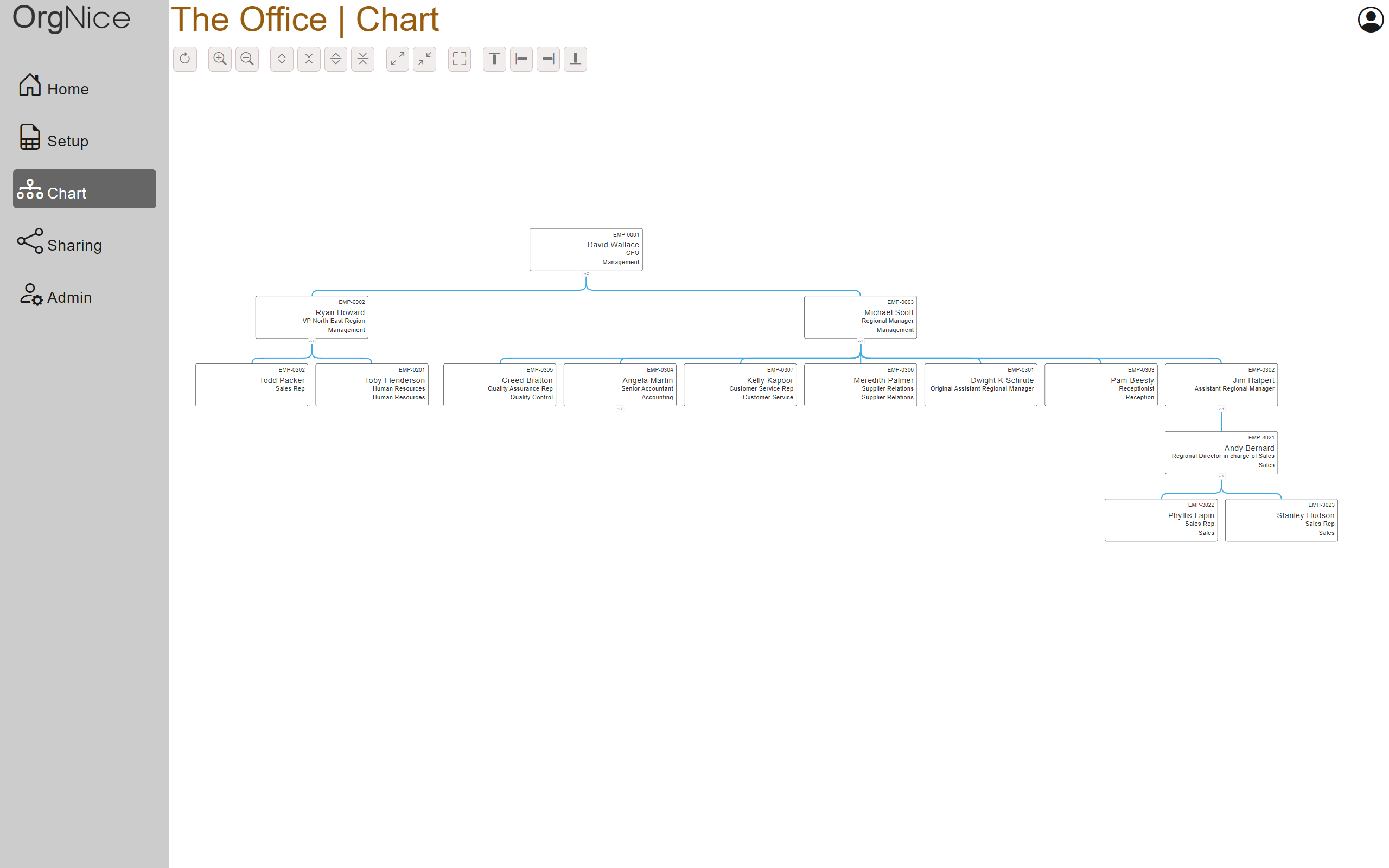 If you have your Google Sheet file but haven’t created an OrgNice Org Chart for it then you should start here.
Adding to Confluence
OrgNice Organizational Charts can be made available wherever they are needed - whether it is a website or your internal wiki like Confluence in just a few steps.
Share your Org Chart
To enable visitors of your Confluence page to view your Org Chart you will have to share it with them. You can either share your OrgNice Organization Chart to all members of your organization or with specific people. Access will be available only after logging in. If you don’t want that, you can share the chart publicly. Read more about sharing. If you are the only viewer of the page, then sharing is not required.
Insert Iframe into Confluence Page
- Edit the Confluence page in which you want to add OrgNice
- From the toolbar pick
Insert Elements(the + icon at the right end of the toolbar) and typeiframein the search box
- You will see an IFrame added to your page with an IFrame editor that looks like this
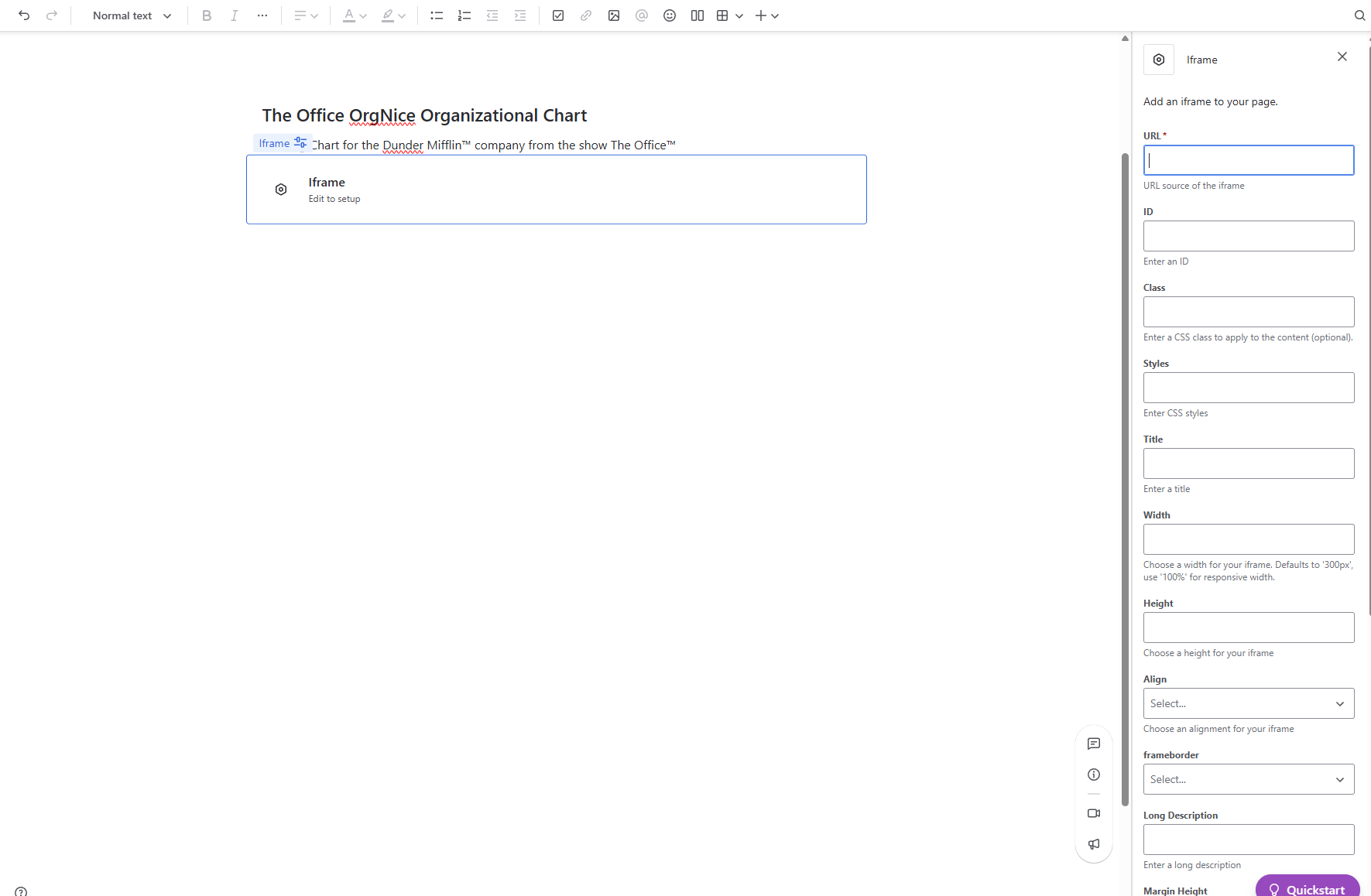
Configure Iframe
We are now going to configure the Iframe to be able to show your Org Chart.
- Head over to OrgNice, open your project and click on
Sharingin the left menu and copy the URL in the Embed Chart section by clicking on the Copy button. You have to copy the URL and not the Iframe code.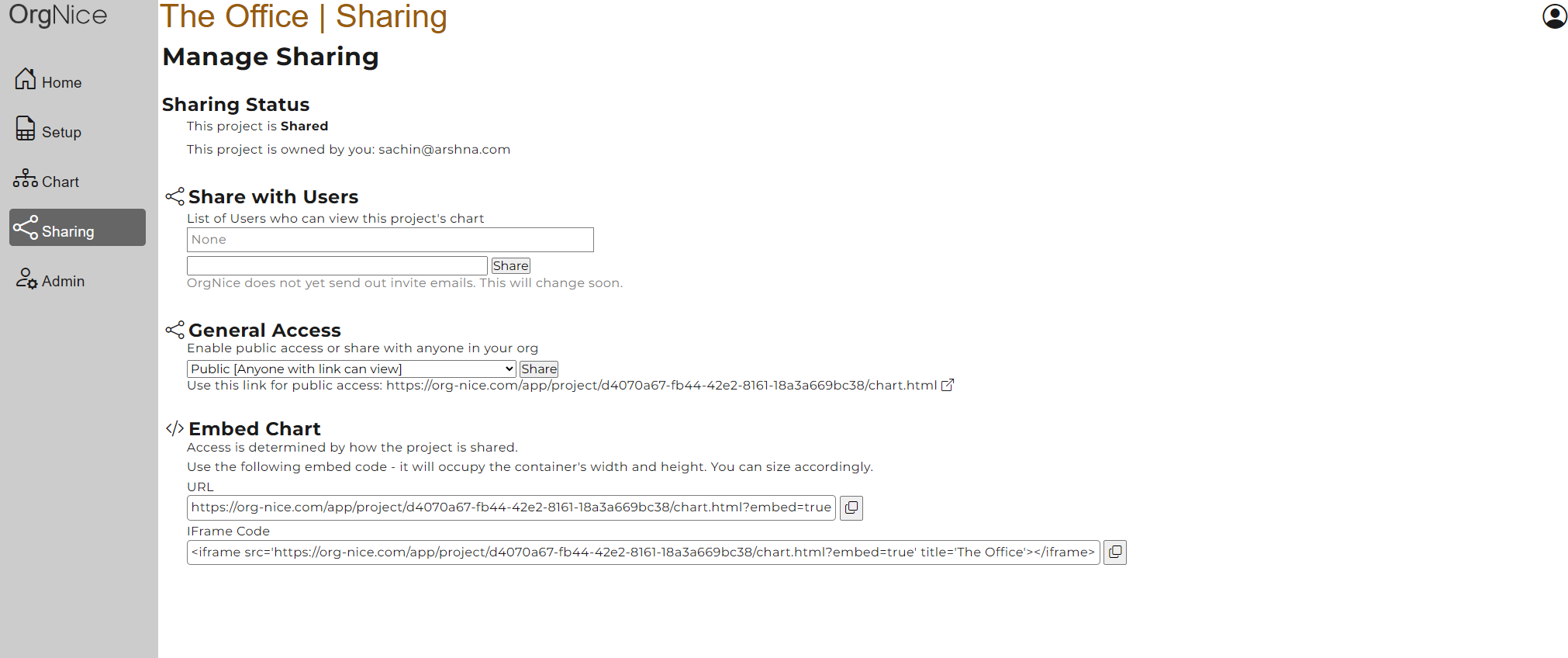
- In the Confluence iFrame editor set the following values to these fields -
- URL: Paste the value you just copied. It should look something like this (but with your project’s id in the url) -
https://org-nice.com/app/project/d4070a67-fa24-41f2-8001-18000669bc38/chart.html?embed=true - Title: Provide a title
- Width: 100%
- Height: Provide a height that looks right to you for your chart. Try 800px. This stands for 800 pixels tall. You can experiment with the numerical value to adjust the height. You want the height large enough to be able to navigate the chart when it is reasonably expanded.
- You can experiment with the rest of the fields - they modify various visual aspects of how the embedded content looks.
- URL: Paste the value you just copied. It should look something like this (but with your project’s id in the url) -
- Save your page!
- You can also set the page to
Make full-width(option above the page title) to make the page and the chart wider (if you chose 100% for the width)
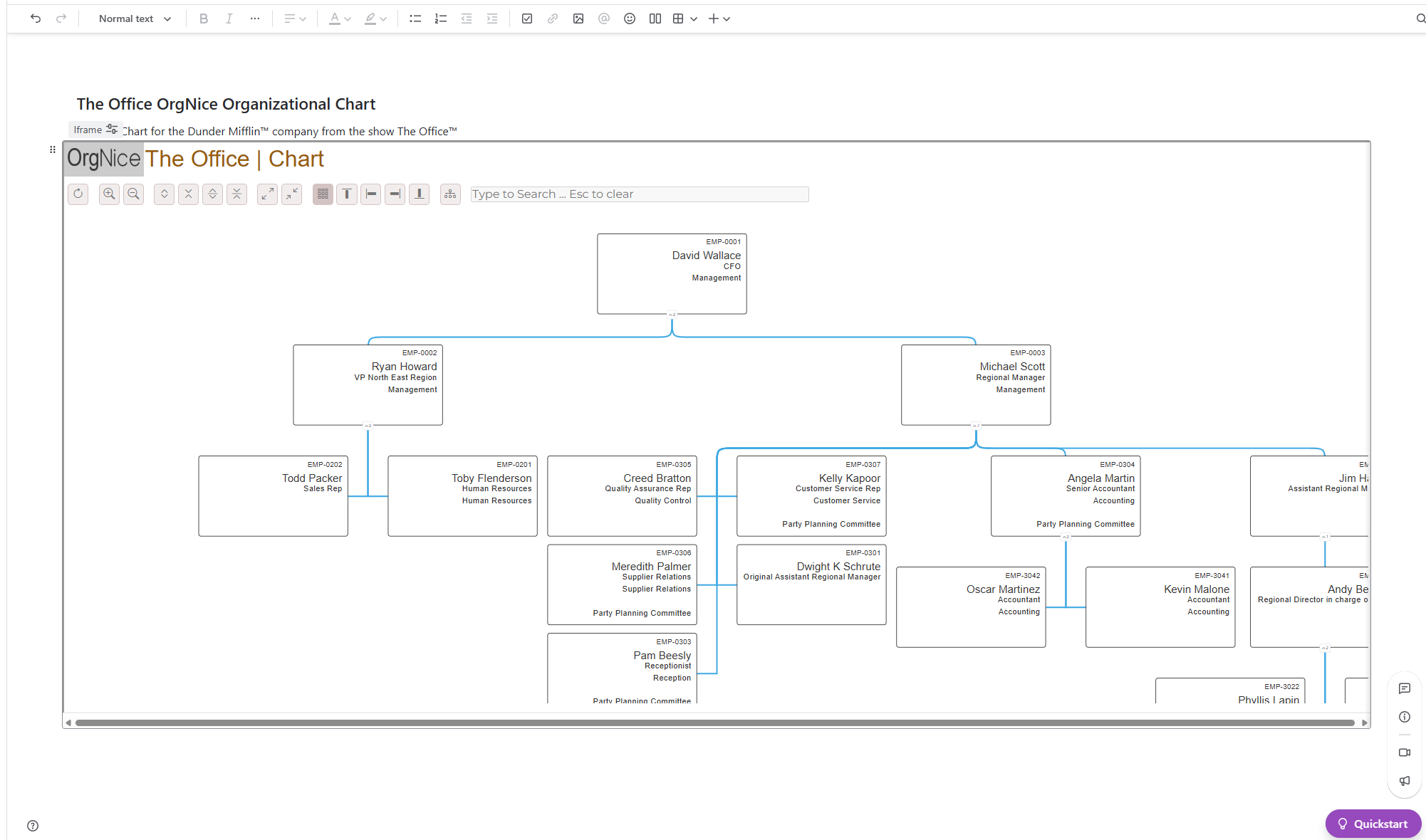
That’s it - you have embedded your OrgNice Organizational Chart into Confluence.
Embedding the Staff Directory in Confluence
The steps for embedding the staff directory are identical to embedding the org chart — the only difference is the URL you use.
Instead of copying the embed URL from the Embed Chart section of your OrgNice sharing page, copy the URL from the Embed Directory section.
The directory embed URL will look something like:
https://org-nice.com/app/project/your-project-id/directory.html?embed=true
Configure the iframe with the same settings:
- URL: Paste the directory embed URL
- Width: 100%
- Height: 800px (adjust as needed — the directory is scrollable)
- Title: Your team name or “Staff Directory”
The embedded directory is fully functional — visitors can search by name, department, or location, switch between card and table view, and click any person to open their full profile. Everything updates automatically when the Google Sheet changes.
Tip: For a Confluence intranet page serving as a people finder, the directory embed is often more useful than the org chart. Visitors can find anyone instantly without navigating a hierarchy.
Enhance Your Org Chart with Confluence Data
Most teams already store valuable organizational data in Confluence—employee spaces, team wikis, profile pictures. You can enrich your org chart by pulling this existing data.
Link to Employee Spaces
Individual team members often have personal Confluence spaces where they document their work, responsibilities, and contact info. Turn your org chart into a navigation hub:
-
Add a “Confluence Space” column to your Google Sheet with each person’s Confluence space URL
- Example:
https://your-company.atlassian.net/wiki/spaces/ESMITH/overviewfor individual pages
- Example:
-
In OrgNice, configure this column as a Link typed field
- Go to your project settings → Additional Fields
- Add the Confluence Space column as a Link type
-
Result: A clickable link appears on each person’s card. Team members can click it to jump directly to that person’s Confluence space
Link to Department/Team Spaces
Beyond individual spaces, you can link entire departments or teams to their Confluence team spaces:
-
Add a “Team Space” column to your Google Sheet and populate it for all members of a department with that department’s team space URL
- Example: All Engineering team members link to
https://your-company.atlassian.net/wiki/spaces/ENGINEERING/overview
- Example: All Engineering team members link to
-
Configure as a Link field in OrgNice
-
Result: Team members can navigate from individual org chart nodes to the broader team documentation and roadmaps
This transforms your org chart from a static diagram into a dynamic navigation and discovery tool—people explore organizational structure and immediately access individual profiles, team documentation, and department resources, all within Confluence.
Linking to Individual Profile Pages from Confluence
Every person in your OrgNice directory has a dedicated, bookmarkable profile page — a stable URL showing their full details: contact information, working pattern, department, reporting relationships, and any other fields from your Google Sheet.
You can link to individual profile pages directly from Confluence:
- Add a person’s OrgNice profile URL to their Confluence space or personal page
- Link from a team roster table in Confluence to each person’s OrgNice profile
- Include profile page links in onboarding documentation so new hires can find their manager and teammates immediately
Profile pages are shareable via a direct link and require no login if the project is set to public or organisation-wide sharing.
Troubleshooting Common Issues
Issue: “Iframe Not Loading” or Blank Embed
Symptoms: The embedded iframe appears blank or shows no content Solutions:
- Verify the sharing settings on your OrgNice project—make sure it’s set to “Shared with Organization” or “Public” if viewers need access
- Check that you copied the full URL from the Embed section (not the iframe code)
- Ensure the URL includes
embed=trueparameter at the end - Clear your browser cache and refresh the Confluence page
Issue: “Login Screen Appears Inside Iframe”
Symptoms: Instead of the org chart, visitors see an OrgNice login screen Cause: The chart isn’t properly shared, or the viewer doesn’t have access permissions Solutions:
- Go to OrgNice → Sharing and set access level to at least “Specific Individuals” (or “Public” if intended for external sharing)
- Add the email addresses of people who need to access the embedded chart
- For organization-wide sharing, use the “Organization” option if you have it enabled
Issue: Chart is Too Wide or Gets Cut Off
Symptoms: The org chart is cramped, horizontal scrolling is hard, or parts are hidden Solutions:
- Enable full-width page in Confluence: Above the page title, click the three-dot menu and select “Make full-width”
- Adjust iframe width to
100%to fill the available space - Increase height if the chart needs more vertical space—try 1000px or higher depending on your org structure
- Collapse/expand nodes in the live chart (if your org is very large) to navigate specific sections
Issue: Chart Doesn’t Update When Data Changes
Symptoms: You updated your Google Sheet or OrgNice project, but the embedded chart still shows old data Solutions:
- Hard refresh the Confluence page: Ctrl+Shift+R (Windows) or Cmd+Shift+R (Mac)
- Verify that your OrgNice project is still connected to the correct Google Sheet
- OrgNice updates typically reflect within 1-5 minutes—wait a few minutes then refresh
Confluence Cloud vs Data Center
OrgNice embeds work on both versions, but there are some practical differences:
Confluence Cloud (hosted by Atlassian):
- Easiest setup—no infrastructure management
- iframe embedding works as described above
- Good for small-to-medium teams
- Limited customization options
Confluence Data Center (self-hosted):
- More control and customization options
- May require allowlisting
org-nice.comdomain if your security policies are strict - Work with your IT/security team to ensure external iframe sources are permitted
- Same embedding steps apply, but may require additional firewall/proxy configuration
For most teams, Confluence Cloud with OrgNice is the simplest path to live, always-current org charts.
Why Live Org Charts and Staff Directories Matter in Confluence
Static org charts in Confluence go stale the moment someone new joins or leaves. By the time you remember to update the image, three more people have changed roles. A live org chart solves this by always showing current structure—making Confluence a genuine source of truth for organizational information instead of a place where outdated docs create confusion.
The same applies to staff directories. A static list of employees in Confluence — names, roles, contact details — goes stale the moment someone joins or leaves. An embedded OrgNice directory stays current automatically, making Confluence a genuine people directory rather than a place where outdated lists create confusion.
This is especially valuable during:
- Onboarding - New hires see current structure immediately
- Reorganizations - Changes are reflected instantly across all documentation
- Board/investor updates - No scramble to update org charts before presentations
- Multiple teams/locations - Everyone accesses the same current structure
Learn More About OrgNice
Ready to build your own live staff directory and org chart? Try OrgNice with your Google Sheets today — it takes just a few clicks and your directory and org chart stay current from that point on. Learn More